
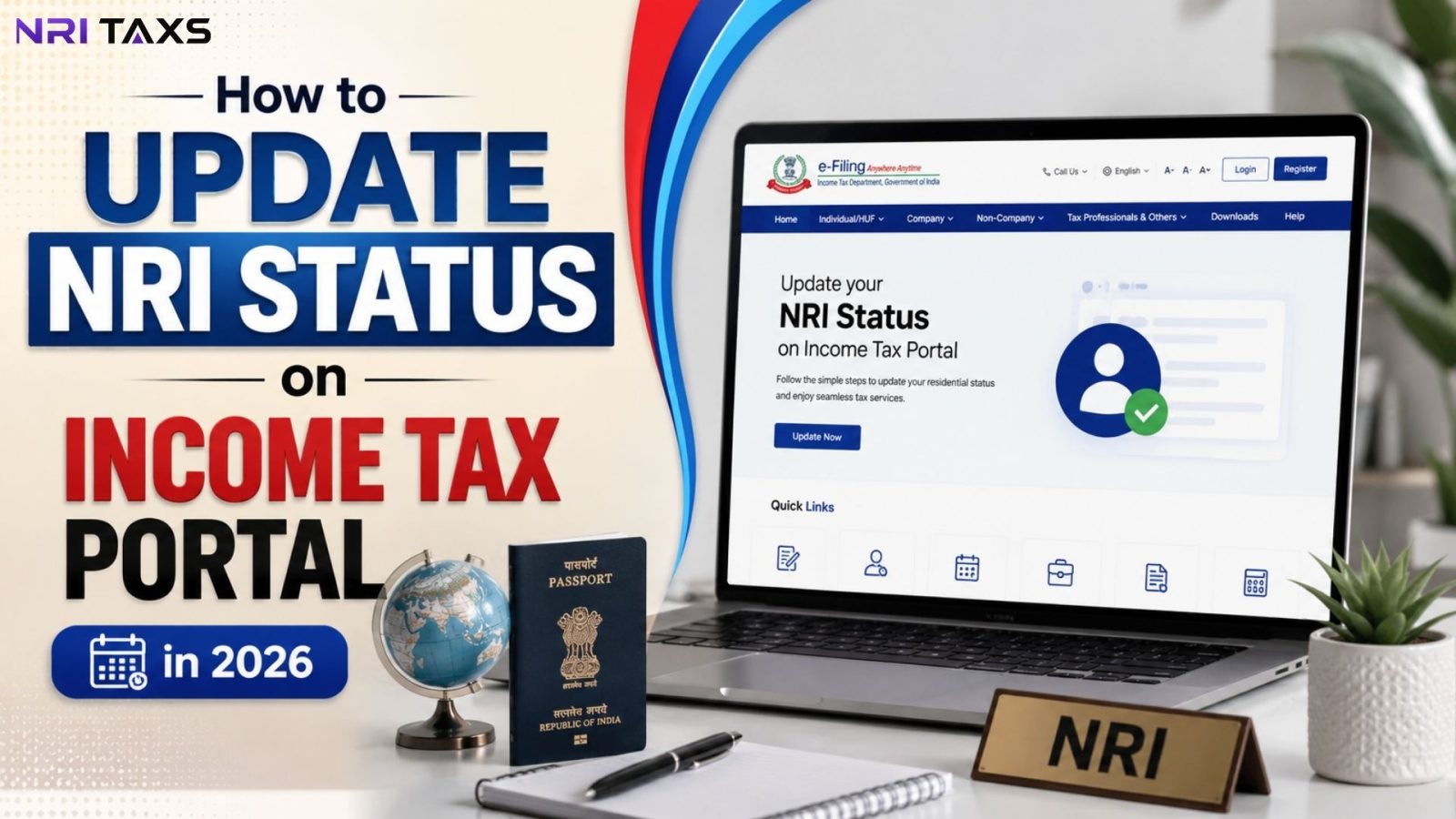
If you have recently moved abroad and become a Non-Resident Indian (NRI), updating your residential status on Income Tax Portal is an important step before filing your income tax return in India. Your residential status can affect how your income is taxed, which ITR details you need to report, and whether certain NRI-specific tax provisions apply to you.
Many NRIs are unsure how to change their status from Resident to Non-Resident on the Income Tax Portal or whether they need to make any changes to their PAN after moving abroad. But the ebay part is you can update your residential status through your e-Filing profile without changing your PAN number.
In this guide, we’ll explain how to update NRI status on Income Tax Portal, including the step-by-step process, required details, how to verify the updated status, common mistakes to avoid, and what you should check before filing your next ITR.
Key Takeaways
- ✔ You can update your Residential Status through your Income Tax e-Filing profile after becoming an NRI.
- ✔ Becoming an NRI does not require you to get a new PAN number; your existing PAN remains the same.
- ✔ Before filing your ITR, check that your Residential Status, overseas address, and other profile details are accurate.
- ✔ If your portal still shows “Resident,” review your profile details and take the necessary steps to correct the status.
- ✔ Your NRI residential status is based on Income Tax rules, not simply on the fact that you live outside India.
What Is NRI Status on the Income Tax Portal?
Your residential status on the e-filing portal is a field tied to your PAN that tells the Income Tax Department how to tax you as a Resident or as a Non-Resident. It’s separate from your citizenship and separate from your bank KYC status, which is a different process altogether. This field decides which income is taxable in India, what TDS rate applies to you, whether Aadhaar-linking rules apply, and how your refunds and communications are processed.
Who Needs to Update Their NRI Status?
- Anyone who has recently moved abroad for work, study, or settlement and now qualifies as an NRI under the Income-tax Act’s residency rules.
- NRIs whose PAN was originally issued while they were still living in India as a resident.
- NRIs facing higher TDS deductions on NRO fixed deposit interest, dividends, or property sale proceeds than their treaty rate should allow.
- NRIs whose PAN has become inoperative because the portal still shows them as a Resident requiring Aadhaar linkage.
- NRIs applying for a lower TDS certificate, filing an ITR, or claiming a refund on a property sale for the first time as a non-resident.
How to Update Residential Status on Income Tax Portal?
Here is the step by step process to update NRI Status on Income Tax Portal.
Step 1: Visit the Income Tax e-Filing Portal
Go to incometax.gov.in, the official e-filing portal. Avoid third-party sites that claim to offer the same service; this update should only be done directly on the government portal to keep your PAN and personal data secure.
Step 2: Log in to Your Account
Log in using your PAN as the user ID, along with your password, or via OTP sent to your registered mobile number or email. If you’ve never registered on the portal before, you’ll need to complete registration using your PAN first.
Step 3: Open “My Profile”
Once logged in, click your name or profile icon in the top-right corner of the dashboard, and select “My Profile” from the dropdown menu. This is where all your personal and PAN-linked details are stored and edited.
Step 4: Go to Personal Details
Within My Profile, open the “Personal Details” or “PAN Details” tab. This section displays the core information the department holds against your PAN, including your current residential status, address, and contact details.
Step 5: Edit Residential Status
Locate the “Residential Status” field and click “Edit” beside it. You’ll be shown options to select your current status Resident, Non-Resident, or Resident but Not Ordinarily Resident (RNOR), depending on your situation for the relevant financial year.
Step 6: Enter/Verify Required Details
Select Non-Resident and fill in supporting details of your country of residence, current overseas address, passport number, and contact information. You’ll typically need to verify this update using an OTP sent to your registered email or mobile.
Step 7: Save and Submit
Review every field carefully, since a mismatch between your passport, address, and portal entry is a common reason updates get rejected later. Once everything looks correct, click Save, and then Submit to file the change with the department.
Step 8: Confirm Your Updated Status
Log back in after a few days and revisit My Profile to confirm the Residential Status field now reads “Non-Resident.” You should also receive a confirmation email on your registered address once the update is processed successfully.
What Details Do NRIs Need to Update?
| Detail | Why It Matters |
| Residential Status | Determines whether you’re taxed as Resident or Non-Resident |
| Overseas Address | Used for official communication and to support your NRI claim |
| Passport Number | Acts as identity/status proof where Aadhaar isn’t available |
| Country of Residence | Relevant for DTAA benefits and treaty-rate TDS claims |
| Contact Number & Email | Ensures OTPs and department notices reach you abroad |
| Bank Account Details | Needed for refund processing; should reflect your NRO account |
What Happens If You Don’t Update Your NRI Status?
Leaving your status unchanged doesn’t just mean an outdated form field, it has real financial consequences. Banks are required to re-designate your resident savings account into an NRO account once they’re informed of your status change, and until that happens alongside your portal update, deductors continue to apply resident TDS assumptions, or worse, apply the higher default rate under Section 206AA if your PAN appears inoperative. Refunds you’re owed can be delayed or withheld entirely, since inoperative or misclassified PANs are flagged for pending refunds.
If you later apply for a lower TDS certificate or try to claim DTAA benefits, mismatched records between your PAN and your actual residency create friction that can stretch a routine application into a months-long back-and-forth. It also complicates your ITR filing, since the pre-filled data and applicable forms are drawn from the same residential status field, and it can hold up unrelated repatriation paperwork like the Form 15CA/15CB process required to move mutual fund or other investment proceeds abroad.

What If the Income Tax Portal Still Shows Resident Status?
If your Income Tax Portal still shows “Resident” even after you have become an NRI, first check whether your residential status was successfully updated in your e-Filing profile. Sometimes the change may not be saved, or your profile details may still contain outdated information.
Try these steps:
- Check your e-Filing profile: Go to My Profile → Personal Details and verify the Residential Status shown there.
- Update the status again: If it still shows Resident, select the edit option and enter the correct residential status and other required details.
- Verify your information: Make sure your country of residence, address, contact details, and other profile information are accurate.
- Check your ITR details: When filing your return, ensure the residential status declared in the ITR matches your actual status for the relevant financial year.
- Contact the Income Tax Department: If the portal does not allow you to update or save the correct status, use the official e-Filing helpdesk/support options.
Important
Simply living outside India does not automatically make you an NRI for income-tax purposes. Your residential status is determined based on the applicable Income Tax Act rules for the relevant financial year.
Conclusion
Updating your NRI status on the Income Tax Portal is an important step to ensure your tax profile and ITR details are accurate. Before filing your return, check that your residential status and other profile details are correctly updated.
If your Income Tax Portal still shows Resident status or you are unsure which residential status applies to you, getting professional guidance can help you avoid incorrect tax reporting. NRITaxs can assist NRIs with residential-status queries, ITR filing, tax compliance, and other NRI tax requirements in India.
Disclaimer
The content published on NriTaxs is intended for informational purposes only and does not constitute legal, tax, or financial advice. Readers are encouraged to consult qualified professionals before making any decisions based on the information provided.





Related Articles