
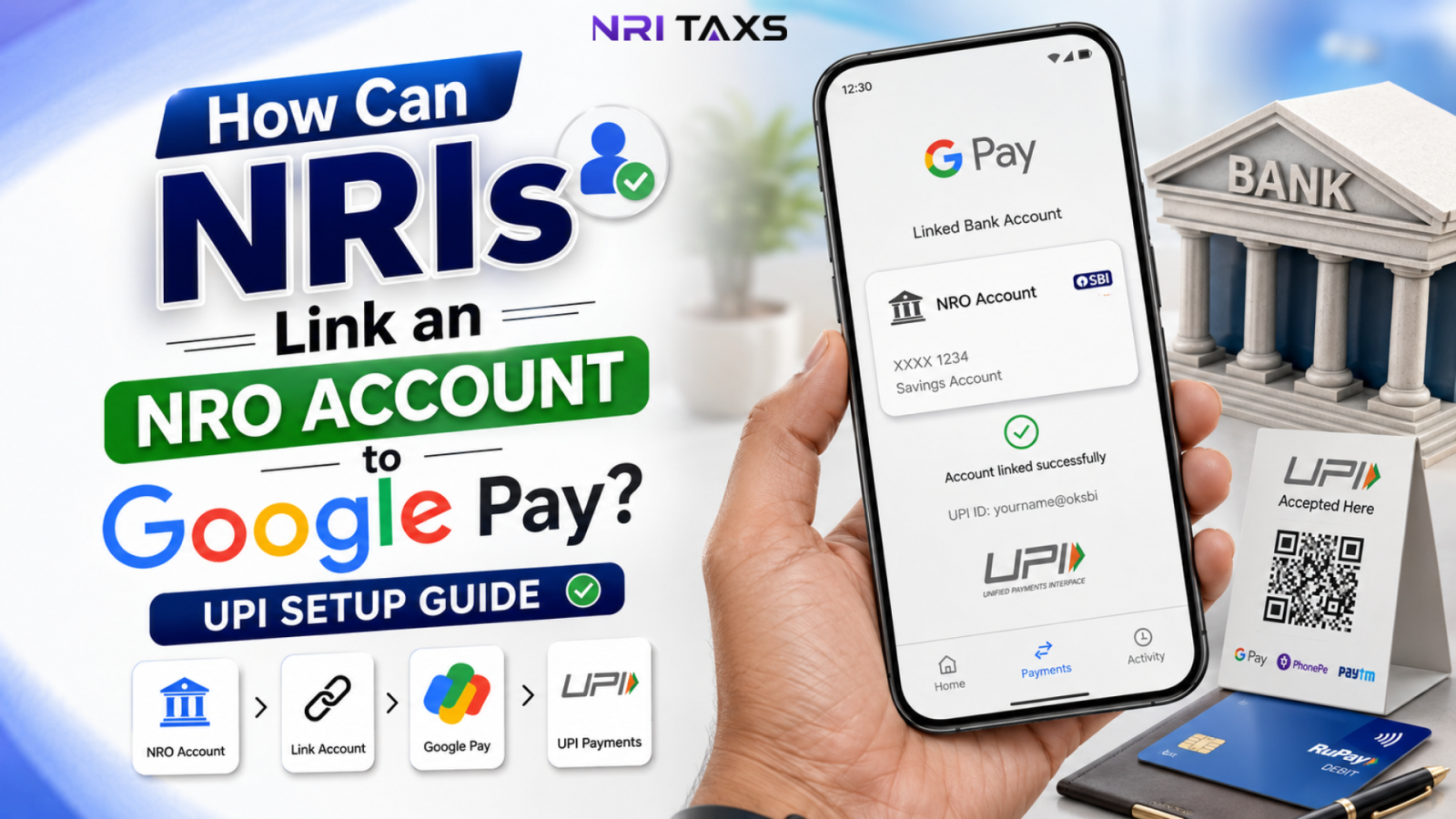
Living abroad doesn’t mean you stop making payments in India. As an NRI, you may use your NRO account to pay bills, manage expenses, or handle other Indian transactions. But things can get confusing when you want to use Google Pay especially if your bank account is linked to a foreign mobile number.
Can Nris link an NRO account to Google Pay? Do you need an Indian mobile number? And how do you set up UPI as an NRI? But the best part is that eligible NRIs can use UPI with supported NRO accounts. In this guide, we’ll explain how to link your NRO account to Google Pay, the requirements you need to meet, and what to do if you face problems during setup.
Key Takeaways
- ✔ NRIs can link eligible NRO accounts to Google Pay for UPI payments, subject to bank and account eligibility.
- ✔ A registered mobile number is essential, and eligible international numbers may also work depending on the country and bank.
- ✔ Your NRO account must support UPI, and the bank must allow NRI account linking through Google Pay.
- ✔ NRO debit card and mobile verification may be required while setting up or creating the UPI PIN.
- ✔ Common issues include unsupported country codes, mobile-number mismatch, KYC problems, and bank-side UPI restrictions.
Can NRIs Link NRO Account to Google Pay?(Quick Answer)
Yes. NPCI now allows NRIs to link an NRO (or NRE) account to Google Pay using either an Indian mobile number or, for a growing list of countries, their international mobile number registered with their bank. The account must be UPI-enabled, and both your bank and Google Pay need to support the specific country code you’re registering from. Not every combination works yet. If you’re setting up UPI for the first time, it’s also important to understand the UPI activation process for NRE and NRO accounts before linking your account to Google Pay.
NRO Account + Google Pay: Eligibility Requirements
| Requirement | Detail |
| Account type | Active NRO (or NRE) account with a participating bank. |
| Mobile number | Indian number, or an international number from an NPCI-approved country. |
| Number registration | Must be registered with your bank against this specific account. |
| Bank support | Bank must support UPI linking for NRO accounts and your country code. |
| Debit card | An active NRO debit card, needed to set your UPI PIN. |
| App | Latest version of Google Pay installed. |
Does Your Bank Support NRO-to-UPI Linking?
Not every bank has enabled UPI for NRO accounts yet, and support varies further by country code. Before attempting to link, check your bank’s NRI banking page or call NRI customer service to confirm your specific account type and country are covered.
Does Your Bank Support International Mobile Numbers?
Even banks that support NRO-UPI linking don’t all accept every foreign number. NPCI currently permits 12 countries, but your bank must separately enable that country code — so confirm both before you try registering.
How to Link NRO Account to Google Pay?
Here is a step by step guide to link NRO Account To google Pay.
Step 1: Check Your NRO Account Eligibility
Confirm with your bank that your NRO account is active, UPI-enabled, and eligible for linking, since inactive or newly opened accounts sometimes take a few days to become UPI-ready.
Step 2: Make Sure Your Mobile Number Is Registered With Your Bank
Whether Indian or international, the exact number you plan to use on Google Pay must already be linked to your NRO account in the bank’s records, or the linking step will fail.
Step 3: Install or Update Google Pay
Download Google Pay from your app store, or update it if already installed, since older versions sometimes lack support for NRI account types and international number registration.
Step 4: Open Google Pay and Add Bank Account
Inside the app, go to your profile and select “Add Bank Account.” Google Pay will attempt to detect your registered SIM automatically, or prompt you to enter your number manually.
Step 5: Select Your Bank
Search for and select your NRO account’s bank from the list. If your bank doesn’t appear or isn’t listed as UPI-enabled for NRIs, linking won’t proceed further.
Step 6: Select Your NRO Account
Once your bank is verified, Google Pay pulls up the accounts linked to your registered number. Choose your NRO account specifically, since some NRIs also hold an NRE account on the same number.
Step 7: Complete Mobile/SMS Verification
Google Pay sends a verification SMS to confirm the number belongs to you. For international numbers, this may arrive as an OTP instead, since automatic SMS detection often doesn’t work across borders.
Step 8: Verify the Account
Once your number is confirmed, Google Pay verifies your NRO account details with the bank in the background, which usually completes within a few seconds to a couple of minutes.
Step 9: Set or Enter Your UPI PIN
If you already have a UPI PIN for this account, simply enter it. If not, you’ll be prompted to create one using your NRO debit card details in the next step.
Step 10: Create Your Google Pay UPI ID
Google Pay automatically generates a UPI ID (VPA) linked to your NRO account and bank for example, yourname@oksbi which you’ll use to send and receive payments going forward.

Can NRIs Link NRO Account to Google Pay With a Foreign Mobile Number?
Yes, but only under specific conditions. NPCI currently permits international numbers from 12 countries including the UK, USA, UAE, Canada, Singapore, Australia, Hong Kong, Saudi Arabia, Oman, Qatar, France, and Malaysia to be used for UPI. Your bank must also have separately enabled that country code for NRI accounts. Coverage isn’t uniform: some banks support all 12 countries, others only a handful, so it’s worth confirming your specific country is live with your bank before assuming the setup will work.
How to Set Up UPI PIN for an NRO Account on Google Pay
- Inside Google Pay, select your newly linked NRO account and tap “Set UPI PIN.”
- Choose to verify using your NRO debit card rather than Aadhaar, since Aadhaar-based verification isn’t available to most NRIs.
- Enter the last 6 digits of your NRO debit card number and its expiry date exactly as printed.
- An OTP is sent to your registered mobile number; enter it within the given time window.
- Create a 4- or 6-digit UPI PIN and confirm it this PIN authorizes every transaction going forward.
Which Banks Support NRO Accounts With Google Pay?
| Bank | NRI UPI Support Snapshot |
| HDFC Bank | Supports NRO/NRE UPI linking and international numbers across roughly 10 of the 12 approved countries, enabled through NRI net banking. |
| ICICI Bank | Among the strongest rollouts supports all 12 approved countries through iMobile Pay, with a relatively smooth onboarding flow for Google Pay linking too. |
| Axis Bank | Supports NRO-UPI linking, though international number coverage is more limited and uneven — worth confirming your specific country with NRI support first. |
| IDFC FIRST Bank | One of the earliest movers on NRI UPI, supporting the full 12-country list with a straightforward in-app registration process. |
| Kotak Mahindra Bank | Supports NRO/NRE UPI linking through its mobile banking app, with international number registration available for several NPCI-approved countries. |
| SBI | Supports NRO-UPI linking and international numbers for roughly 8 of the 12 approved countries, with coverage expanding gradually. |
Why Can’t NRIs Link Their NRO Account to Google Pay?
NRO Account Not Showing on Google Pay
Usually means your mobile number isn’t correctly linked to that specific account in the bank’s records, even if it’s linked to your profile generally. If you originally held a resident savings account and only recently moved it over, it’s worth double-checking that the conversion to NRO status was fully completed on the bank’s end, since a partially completed conversion is a common cause of this exact error.
Mobile Number Doesn’t Match
The number active on your phone must be the exact number registered with your bank for this account, a recently changed SIM often causes this mismatch.
Foreign Number Not Supported
Your country code may not yet be on NPCI’s approved list, or your specific bank hasn’t enabled that country even though NPCI permits it.
Bank Doesn’t Support Google Pay
Some smaller or regional banks haven’t integrated with Google Pay’s NRI onboarding flow at all, regardless of UPI eligibility elsewhere.
SMS Verification Failed
International numbers often can’t receive Google Pay’s automatic verification SMS, so the app falls back to OTP, checking your spam or blocked-number settings.
UPI Registration Failed
A generic failure usually means a temporary mismatch between the bank’s server and NPCI’s system, retrying after some time often resolves it.
Debit Card Verification Problem
Entering an expired card, a card not linked to the NRO account, or mistyping digits during PIN setup will block verification every time.
NRO Account Is Not Eligible
Certain NRO account types, particularly older accounts not migrated to core banking, or accounts flagged for review, aren’t yet UPI-eligible.
Bank Account Is Not KYC Compliant
An outdated KYC status, common when residential status changed but records weren’t updated, blocks UPI registration until it’s refreshed. The process for updating your KYC from resident to NRI status is usually the fastest way to clear this specific error.
Google Pay Shows “No Bank Account Found”
This typically means Google Pay couldn’t match your registered mobile number to any bank account at all; the number itself isn’t linked anywhere.
How to Fix NRO Account Not Showing on Google Pay
- Check registered mobile number: confirm with your bank that the exact number on your phone is the one linked to your NRO account.
- Check international-number eligibility: verify your country code is both NPCI-approved and separately enabled by your bank.
- Confirm bank supports UPI: some banks support UPI generally but haven’t extended it to NRO accounts specifically.
- Update Google Pay: an outdated app version can fail to detect valid NRI accounts correctly.
- Enable outgoing SMS: some international roaming or local SIM plans block the SMS needed for verification.
- Check SIM/mobile-data requirements: Google Pay sometimes needs an active data connection alongside SMS access to complete detection.
- Verify KYC status: an outdated or incomplete KYC record with your bank will silently block account detection.
- Contact bank: if all else checks out, ask NRI support to confirm the account is flagged correctly for UPI on their end.
- Re-register UPI: sometimes removing and re-adding the account in Google Pay resolves a stuck registration state.
Contact Us
Can NRIs Use Google Pay Without an Indian SIM?
Yes, provided your bank and country combination is supported, you don’t need to maintain an active Indian SIM just to use UPI. Once your international number is registered with your NRO or NRE account and your bank has enabled that country code, Google Pay works the same way it would with an Indian number. For a deeper walkthrough of getting this right without holding onto an Indian number at all, this guide on using UPI as an NRI without an Indian SIM card covers the country-by-country nuances in more detail.
Google Pay NRO Account Transaction Limits
The standard UPI daily limit applies to NRO accounts just as it does to resident accounts ₹1,00,000 per day, with a lower ₹5,000 cap during the first 24 hours after a new UPI ID is created. Some banks apply additional per-transaction or weekly caps of their own, so it’s worth checking your specific bank’s UPI terms alongside the general NPCI limit, especially if you’re planning a larger one-off payment.
Google Pay NRO Account Charges
| Transaction Type | Typical Charge |
| Personal peer-to-peer UPI payment | Free |
| Bill payments via UPI | Free |
| Merchant payments above ₹2,000 | Interchange fee (0.5%–1.1%), generally borne by the merchant, not you |
| NRO account maintenance | Varies by bank — a separate account-level charge, unrelated to UPI itself |
Keep in mind that any interest your NRO account earns is taxable in India and subject to TDS regardless of how you use the account day to day, if you’re also holding an NRO fixed deposit, it’s worth understanding how TDS on NRO fixed deposits is calculated and how to claim back any excess, since UPI access doesn’t change your underlying tax obligations on the account.
Conclusion
Linking an NRO account to Google Pay is genuinely straightforward once your number, KYC, and bank support are all aligned — most failures trace back to one of those three, not to UPI itself. Confirm your bank supports your country code, keep your registered number current, and the rest of the setup usually takes under fifteen minutes.
Disclaimer
The content published on NriTaxs is intended for informational purposes only and does not constitute legal, tax, or financial advice. Readers are encouraged to consult qualified professionals before making any decisions based on the information provided.





Related Articles