
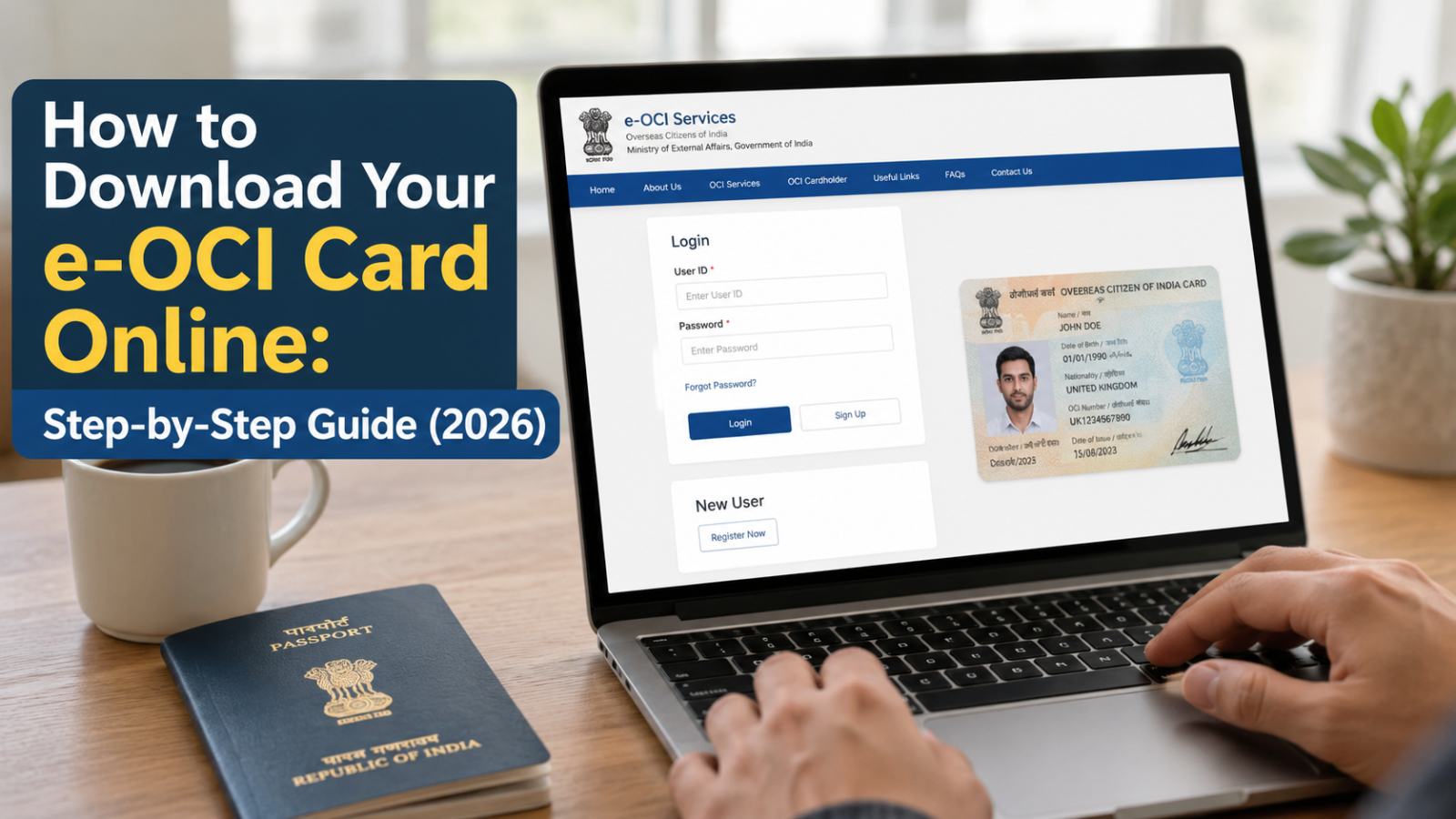
Many OCI cardholders successfully receive their OCI approval but get stuck at the final step downloading their Electronic OCI (e-OCI) Card. Common issues such as invalid passport details, application number errors, website glitches, or confusion about the official download process often prevent users from accessing their e-OCI Card.
If you’re unable to download your e-OCI Card, don’t worry. In most cases, the issue can be resolved by verifying your application details or following the correct download process.
This guide explains how to download an e-OCI Card, the official download steps, common errors, troubleshooting tips, and what to do if the download still doesn’t work.
What Is an Electronic OCI (e-OCI) Card?
The e-OCI card is the official digital equivalent of the physical OCI booklet, introduced by the Government of India as part of a broader digital governance push that also included the FCRA 2.0 portal. Instead of carrying a physical booklet through airports, OCI holders can now complete an electronic OCI card download from the official portal, store it on their phone, and show it at immigration counters and to airlines. The physical booklet has not been discontinued; the e-OCI card is an added convenience, not a replacement, at least for now.
Who Can Download an e-OCI Card?
The e-OCI card download after approval is currently available to existing OCI cardholders whose applications are already approved and visible on the OCI Services Portal. You’re eligible if:
- You already hold an approved OCI card (booklet), and
- You are registered on ociservices.gov.in using the same email address you used for your original OCI application, or you can complete that registration now.
New applicants filing fresh OCI applications going forward are expected to receive their e-OCI directly once approved, without a separate download step. If you fall into the existing-cardholder category, you’re ready to learn how to download e-OCI card in under five minutes. If you’re returning to India after receiving your OCI Card, you may also need to understand your Indian tax obligations. Read our complete guide on Income Tax Return for NRIs before filing your taxes.
What Do You Need Before Downloading Your e-OCI Card?
Before you start the electronic OCI card download process, keep the following ready:
| Requirement | Why You Need It |
| OCI Portal login (User ID & password) | Required to access your dashboard on ociservices.gov.in |
| Access to your registered email | Used for OTP verification and password recovery |
| Approved OCI application status | The e-OCI can only be generated once your application shows as approved |
| Updated browser (Chrome/Edge, latest version) | The portal runs more reliably on updated browsers |
| Passport number used in your OCI application | May be needed to verify your identity during login |
How to Download Your e-OCI Card Online
Here’s how to download e-OCI card online in five simple steps, based on the process laid out by the Bureau of Immigration:
Step 1: Visit the Official OCI Services Portal
Go to ociservices.gov.in, the only official portal for OCI-related services. And you can also visit savetaxs.com, they help you in OCI card downloads and any other oCI card related services.
Step 2: Log In (or Register) With Your OCI Credentials
Use your existing User ID and password to log in. If you haven’t registered on the portal yet, complete registration using the same email address you originally used when applying for your OCI. This step is essential because mismatched emails are one of the most common reasons a download electronic OCI card attempt fails.
Step 3: Open the e-OCI Tab on Your Dashboard
Once logged in, click on the e-OCI tab on your dashboard. This section lists your approved OCI application(s) and shows their current status.
Step 4: Click “Generate e-OCI Card”
Against your approved application, click Generate e-OCI Card in the last column. The portal will process your request and prepare your digital card for download.
Step 5: Download and Save It to Your Phone
Once generated, download the e-OCI card and save it securely on your phone — ideally in a folder you can access offline, alongside a PDF or screenshot backup. This completes the download electronic OCI card process, and you can now present it at immigration check posts and to airlines whenever required.
Reasons Why Your e-OCI Card Won’t Download
If you’re unable to download e-OCI card despite following the steps above, it’s usually one of these issues:
- The rollout is phased and not every approved applicant sees the “Generate e-OCI Card” option on day one.
- Your application status hasn’t been marked “approved” or “issued” yet on the portal.
- You registered with an email address different from the one used in your original OCI application.
- The portal is experiencing heavy traffic, especially right after a public announcement.
- Browser cache, cookies, or an outdated browser version are interfering with the page.
Common e-OCI Download Errors and How to Fix Them
Here’s a quick reference for the most common e-OCI download error messages and situations:
| Error / Situation | Likely Cause | How to Fix It |
| “Generate e-OCI Card” button is missing | Rollout hasn’t reached your application yet | Check back every few days; rollout is phased by batch |
| Page won’t load or shows a blank screen | High traffic on the portal | Retry during off-peak hours; clear browser cache and cookies |
| Login fails repeatedly | Wrong email or password on file | Use “Forgot Password”; confirm the email matches your original application |
| Download stuck or doesn’t start | Pop-up blocker or browser restriction | Disable the pop-up blocker or try a different browser |
| e-OCI card not generated despite approval | Data mismatch between OCI and passport records | Contact your nearest Indian consulate/embassy or the OCI helpdesk |
What Should You Do If Your e-OCI Card Still Won’t Download?
If you’ve checked everything above and you’re still stuck with OCI approved but e-OCI not available, here’s what to do:
- Wait and recheck since the rollout is phased, many cardholders will get access over the following weeks rather than all at once.
- Double-check that your registered email exactly matches the one on your original OCI application file.
- If the issue persists, reach out through the official OCI Services Portal support section, or contact the Indian consulate or embassy nearest to you.
- Keep your physical OCI booklet on hand and valid in the meantime — you don’t need to wait for the e-OCI to travel.
Can You Travel Without Downloading Your e-OCI Card?
Yes. This is one of the most searched questions about the rollout, and the answer is straightforward: your physical OCI booklet remains fully valid. The e-OCI card is an additional, optional convenience not a mandatory replacement. If your OCI card download hasn’t gone through yet, or you simply haven’t gotten around to it, you can travel on your physical booklet exactly as before. We’d still recommend downloading the digital version as a backup the next time you’re at your laptop, since having both reduces the risk of being without a valid ID if the booklet is ever lost.
Conclusion
Now that you know how to download e-OCI card online, there’s no reason to keep relying on a single paper booklet as your only form of OCI proof. Log in to the portal, check your e-OCI tab, and complete the download the next time you have five spare minutes — before your next trip, not the night before it.
Ready to check your e-OCI status? Visit the official OCI Services Portal and complete your download today.
Disclaimer
The content published on NriTaxs is intended for informational purposes only and does not constitute legal, tax, or financial advice. Readers are encouraged to consult qualified professionals before making any decisions based on the information provided.




Related Articles